
Understanding model selection in Granola chat
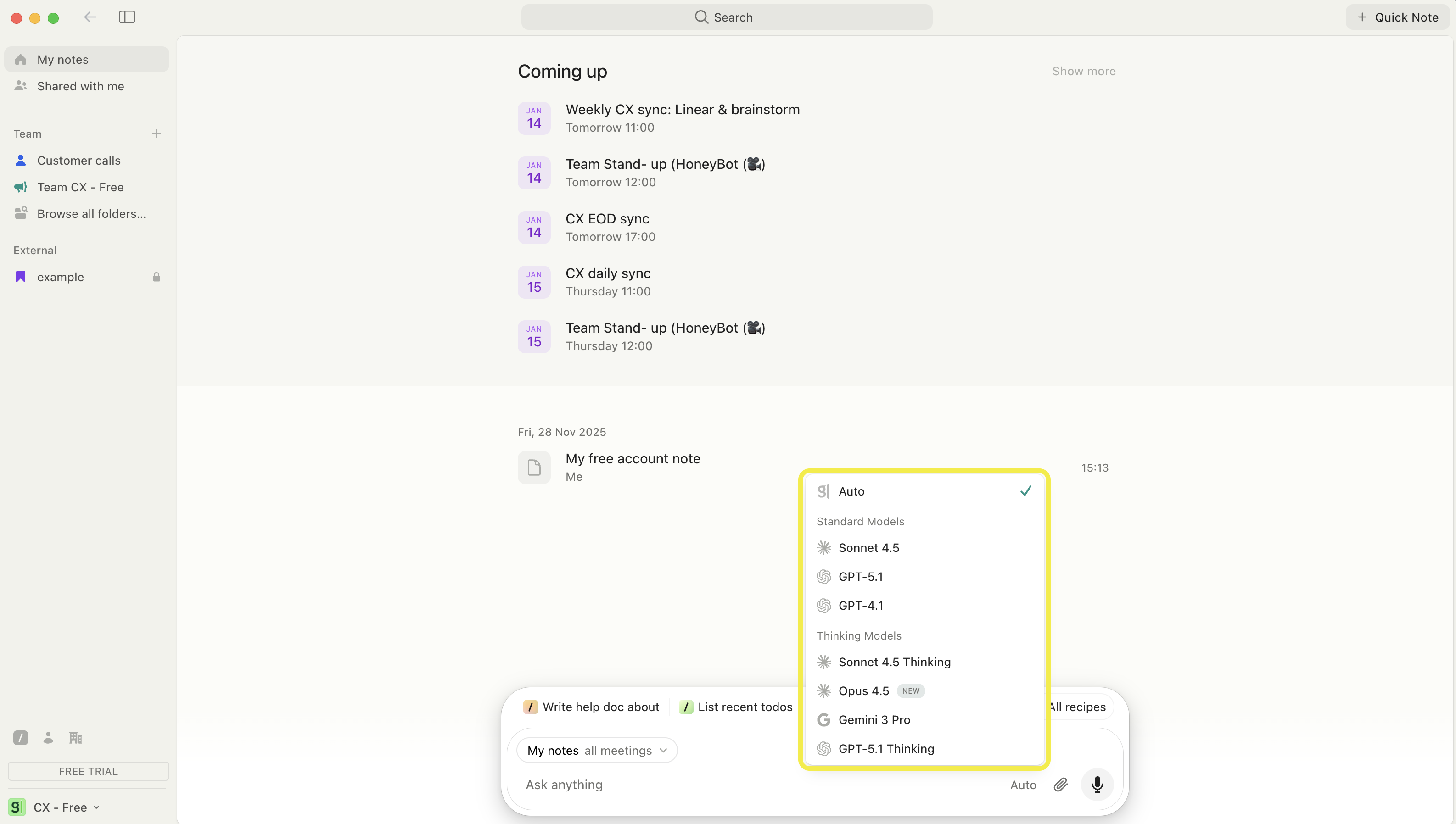
Granola chat lets you choose between different AI models depending on what you’re working on. You can either let Granola automatically pick the best model, or manually select a standard or thinking model for more control.
Auto model selection
When model selection is set to Auto, Granola automatically chooses the best model based on your chat context so you don’t have to think about it.
For single-meeting chats (during or after a specific meeting), Auto uses GPT‑5.1
For multi-meeting or global chats (e.g. homepage chat, folder chats), Auto uses Claude 4 Sonnet
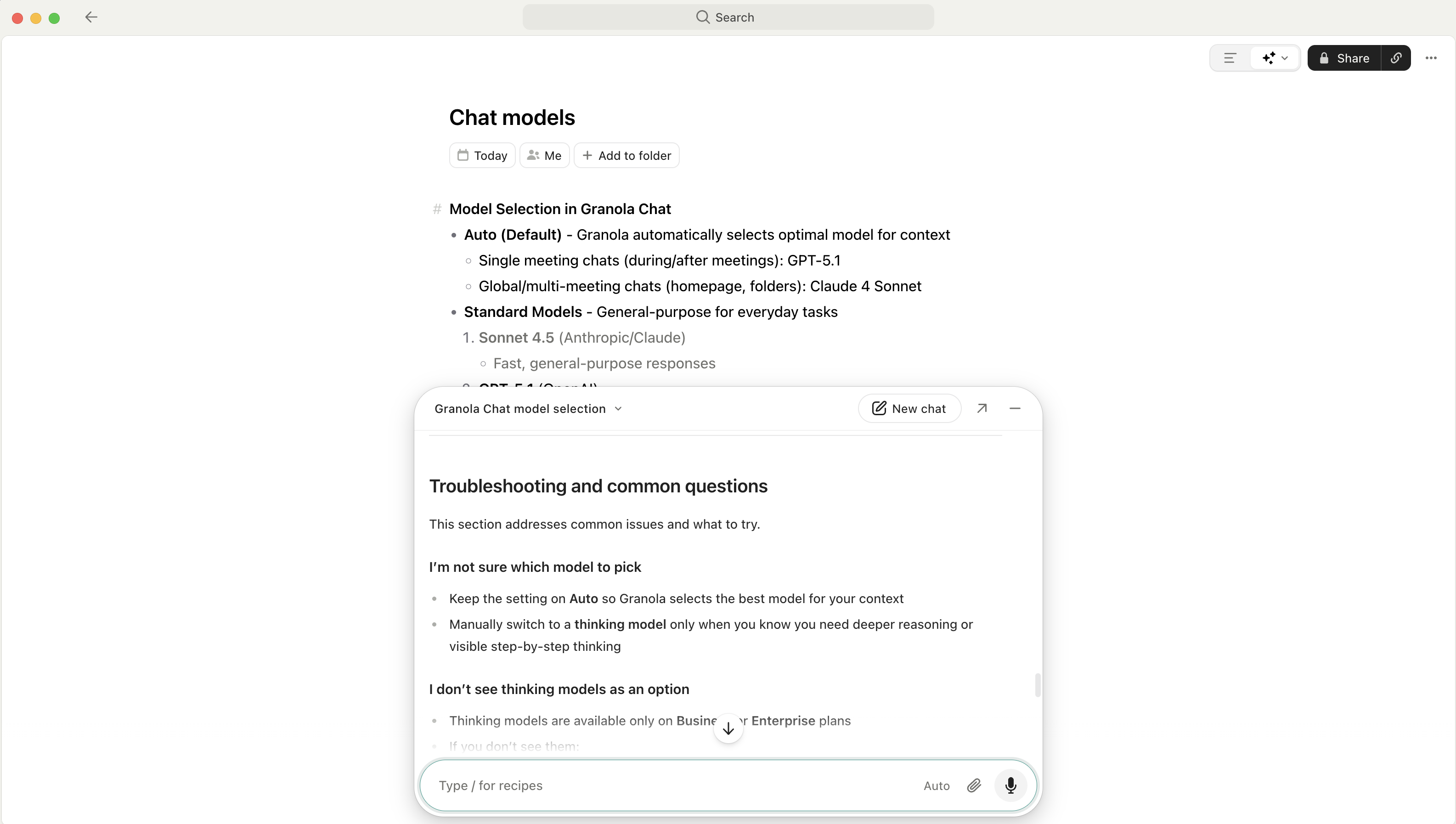
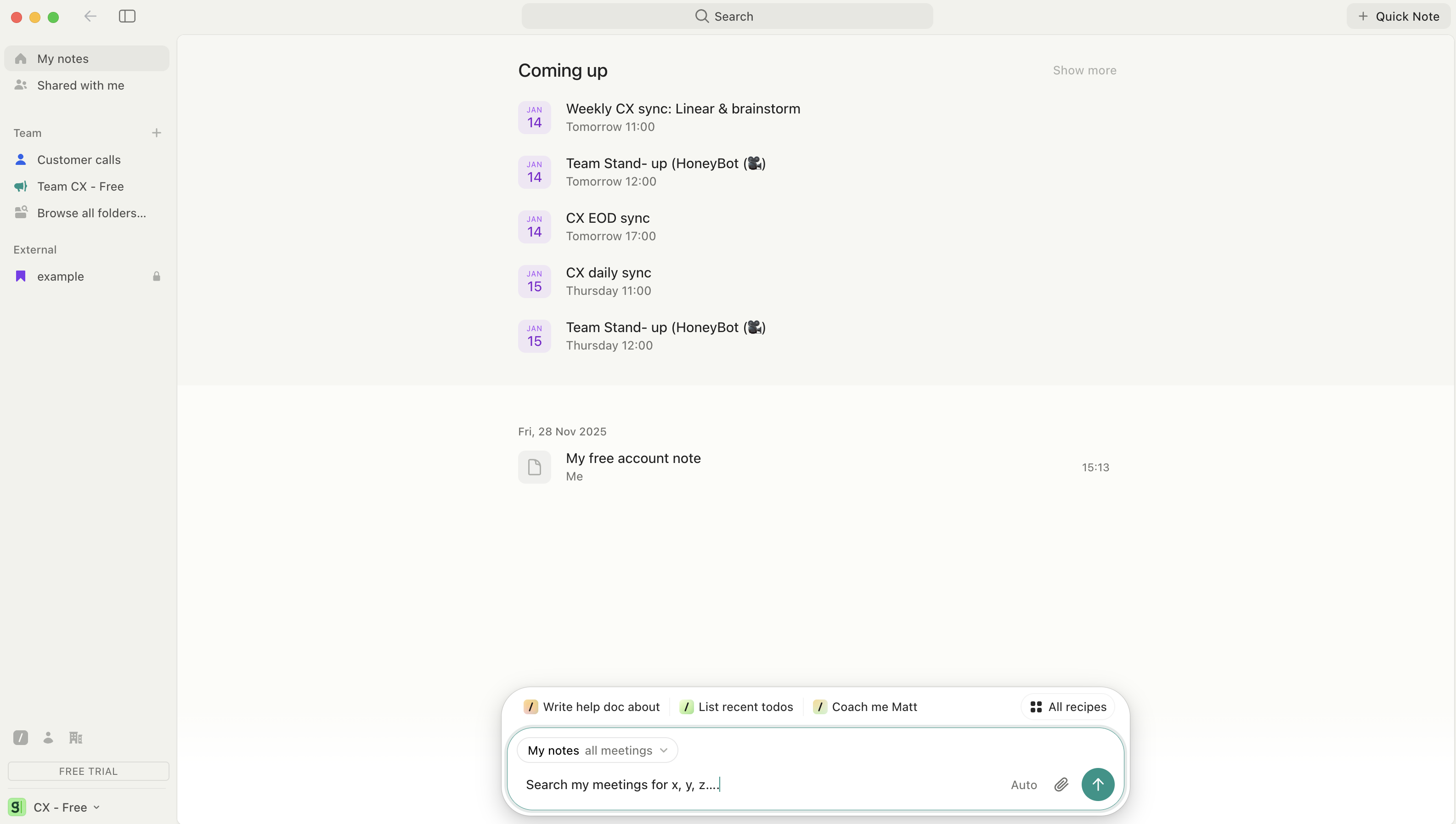
This helps you get fast, relevant answers whether you’re focused on one meeting or working across multiple meetings.
Standard models
Standard models are general-purpose options designed for everyday tasks where you want quick, high-quality responses.
Standard models in Granola include:
Sonnet 4.5 (Anthropic / Claude)
Best for fast, general-purpose responses across many topics
GPT‑5.1 (OpenAI)
Best for quick answers to meeting-specific questions
GPT‑4.1 (OpenAI)
Best for fast responses on simpler tasks
When to use standard models
Standard models are ideal when you need:
Quick questions answered about a meeting
Action items extracted from a call
Simple summaries of what was discussed
Everyday drafting and editing tasks that don’t require deep reasoning
Thinking models
Thinking models are advanced reasoning models that provide deeper, step-by-step analysis. They are available on Business or Enterprise plans only.
Thinking models in Granola include:
Sonnet 4.5 Thinking (Anthropic / Claude)
Best for complex analysis that benefits from visible, step-by-step reasoning
Opus 4.5 (Anthropic / Claude)
Best for the most sophisticated reasoning and really complex problems
Gemini 3 Pro (Google)
Best for deep analysis and nuanced reasoning
GPT‑5.1 Thinking (OpenAI)
Best for complex reasoning tasks where you want more careful thought
How thinking models work
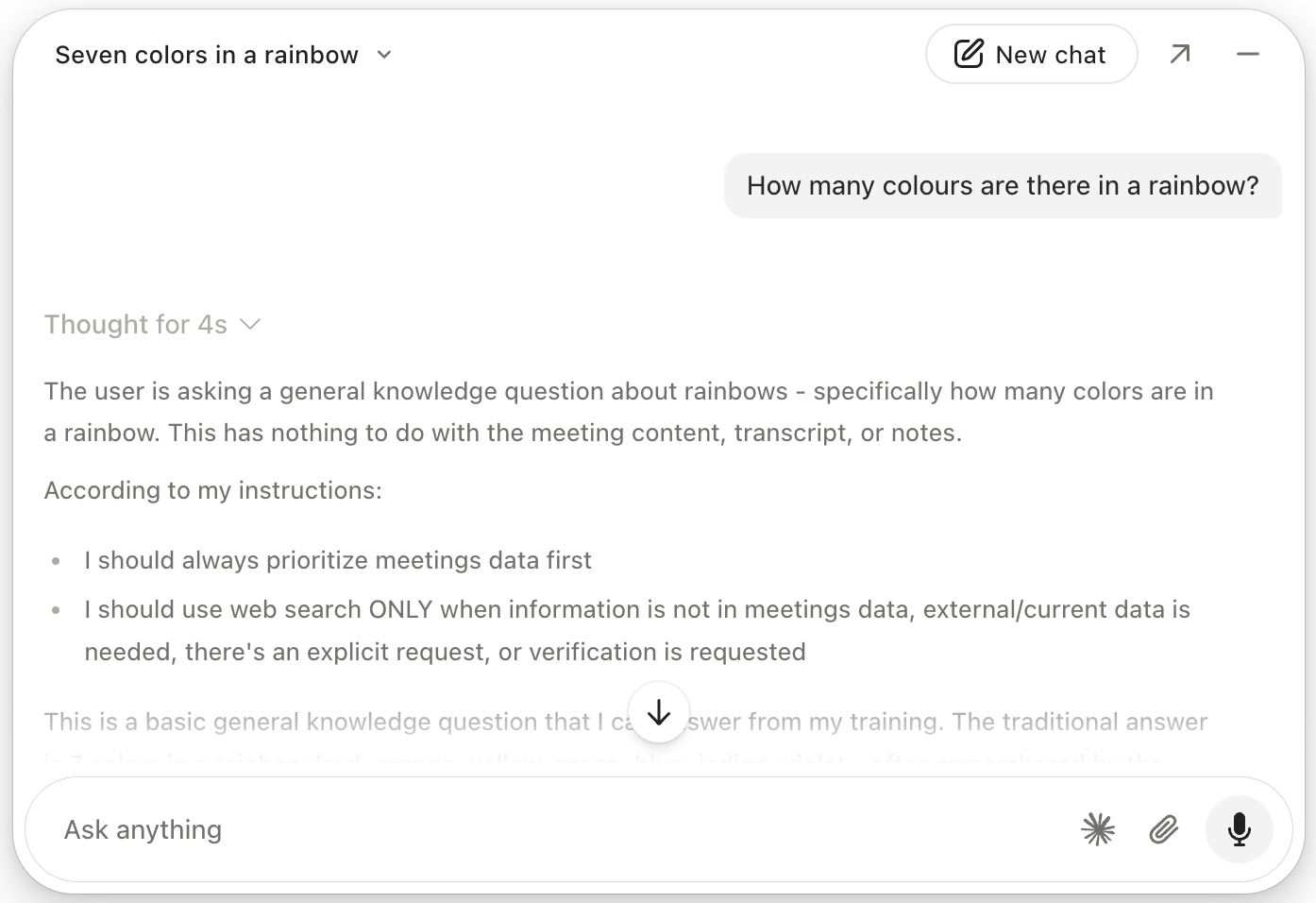
Thinking models can show you how they arrived at an answer through an expandable reasoning view.
You’ll see a “Thought for Xs” indicator (where X is a number of seconds). This means the model is doing step-by-step reasoning in the background, and you can expand that indicator to view the reasoning process.
This is especially useful when you want to understand or audit how the AI reached its conclusion.
When to use thinking models
Use thinking models when:
You’re doing complex analysis or strategy work
You’re exploring nuanced tradeoffs or scenarios
You want to see the AI’s reasoning process, not just the final answer
You’re working on high-stakes or intricate problems where transparency matters
Note: Thinking models require a paid subscription (Business or Enterprise).
Usage tips and best practices
This section covers general guidance for choosing the right model in chat.
General recommendations
In most cases, you don’t need to pick a model manually:
Leave model selection on Auto unless you have a specific reason to choose a particular model
Use standard models for:
Quick questions
Action item extraction
Simple summaries or straightforward tasks
Use thinking models for:
Complex analysis or strategy questions
Situations where you care about how the AI reasoned through the answer
Example use cases
Some common ways to use each model type:
Standard models
Summarize a single meeting
Pull out decisions and next steps
Draft a short follow-up message based on a call
Answer “what did we say about X?” for a specific meeting
Thinking models
Compare multiple meetings to derive themes or recommendations
Plan strategy based on several stakeholder conversations
Analyze risks, tradeoffs, or options using detailed reasoning
Understand why a particular recommendation is being made
Troubleshooting and common questions
This section addresses common issues and what to try.
I’m not sure which model to pick
Keep the setting on Auto so Granola selects the best model for your context
Manually switch to a thinking model only when you know you need deeper reasoning or visible step-by-step thinking
I don’t see thinking models as an option
Thinking models are available only on Business or Enterprise plans
If you don’t see them:
Check which plan your workspace is on
Contact your admin or account owner about upgrading if needed