
Migrating to a Microsoft account in Granola
Granola now supports signing in with Microsoft and connecting directly to your Outlook calendar. If you’ve been using a Google account as a workaround to access your Outlook calendar, you can now migrate to using your Microsoft account for a more seamless experience.
Before you start
Check which scenario applies to you, as the migration process differs slightly:
Same email address: If your Google account and Microsoft account use the same email address, you only need to sign out and sign back in with Microsoft. Your account and all notes will remain intact.
Different email addresses: If you used a personal Gmail address but your work account is on Microsoft, you’ll need to transfer your notes after signing in with Microsoft.
Sign out of your current account
Click the Granola menu in the bottom left corner
Select Settings
Scroll down and click Sign Out (bottom left)
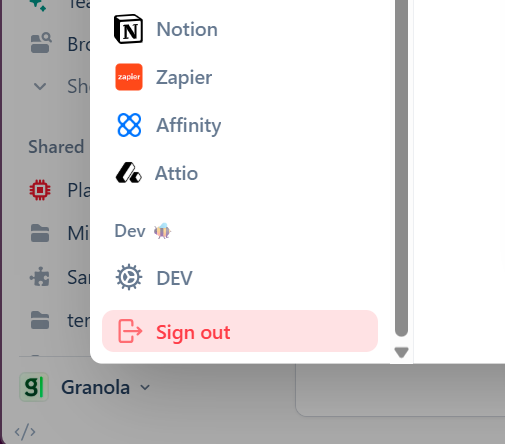
Your account will remain exactly the same with all your notes preserved.
Sign in with Microsoft
Click Sign in with Microsoft on the sign-in screen
Complete the Microsoft sign-in process
Grant calendar permissions when prompted
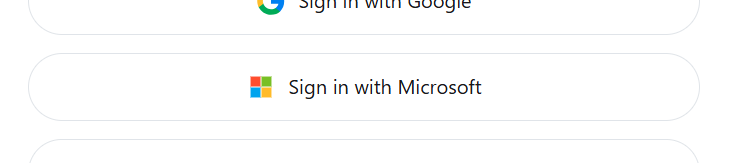
You’ll now see a new account since you’re using a different email address.
Transfer your notes
If you previously used a Gmail account or other alternate email address to use Granola, you may need to transfer your notes. To bring over your notes from your previous account:
Click the Granola menu in the bottom left corner
Select Settings
Go to the Profile tab
Find the Transfer notes option
Enter your previous Gmail address in the field
Check your Gmail inbox for a verification email and confirm
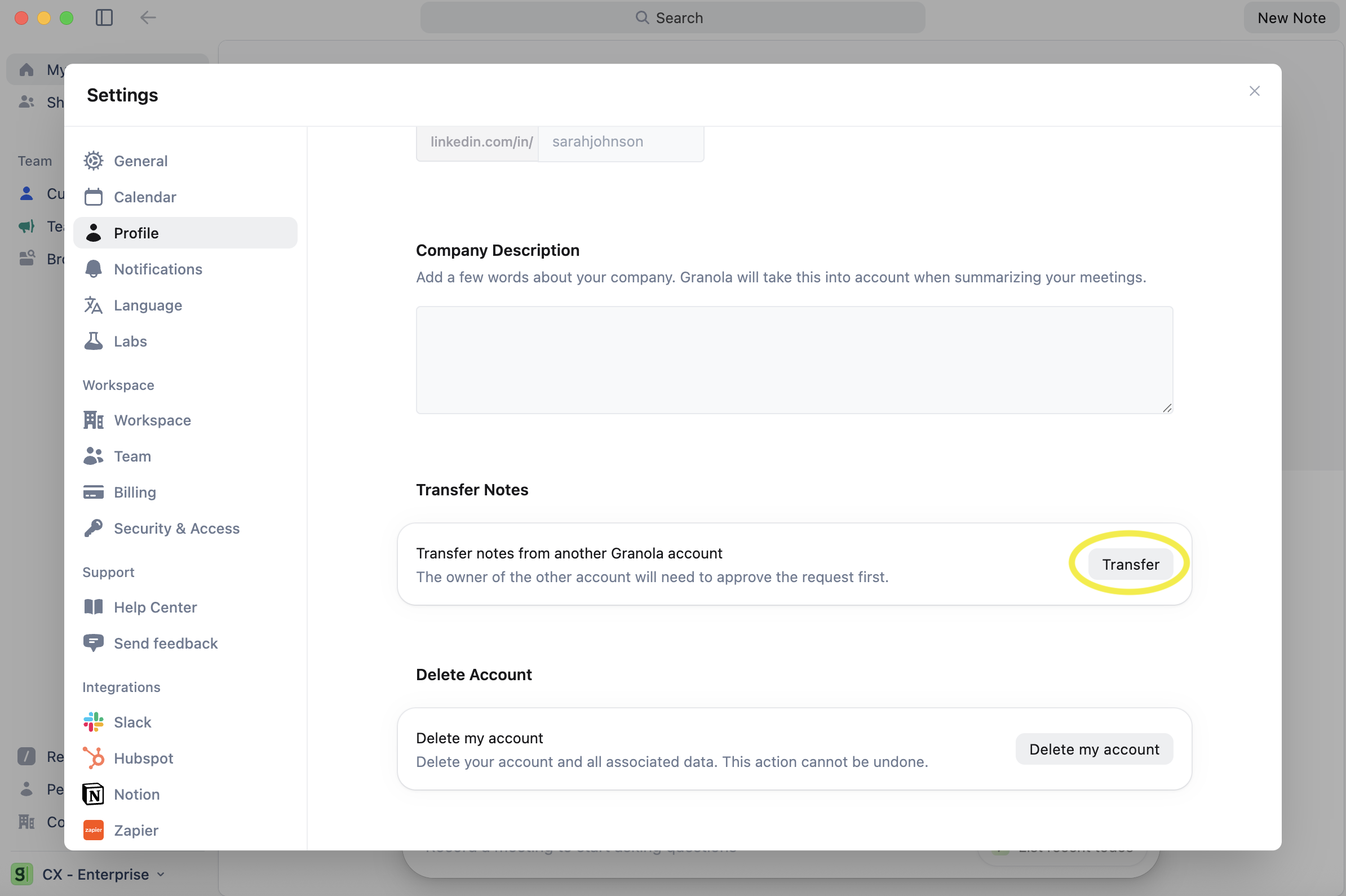
All your note history will transfer to your new Microsoft account. The notes are moved, not copied, so your old account will be empty.
What to expect after migrating
Your Outlook calendar events will now sync directly through your Microsoft account without any workarounds. All transferred notes will appear in your new account, though folder structures are not preserved and will need to be recreated manually.
You can keep your old Gmail account active if you want to use it for personal meetings. To switch between accounts, you’ll need to sign out and sign back in with the other account.
Troubleshooting
Admin approval screen
When signing in with Microsoft, you may see an admin approval screen. This happens when your organization requires administrator consent for new applications. Contact your IT administrator to approve Granola for your organization.
Notes didn’t transfer
Make sure you completed the verification step by clicking the link in the email sent to your Gmail account. If you didn’t receive the verification email, check your spam folder or try the transfer process again.