
Heads Up
Works for Google Meet events organized with Google Calendar on macOS or Windows.
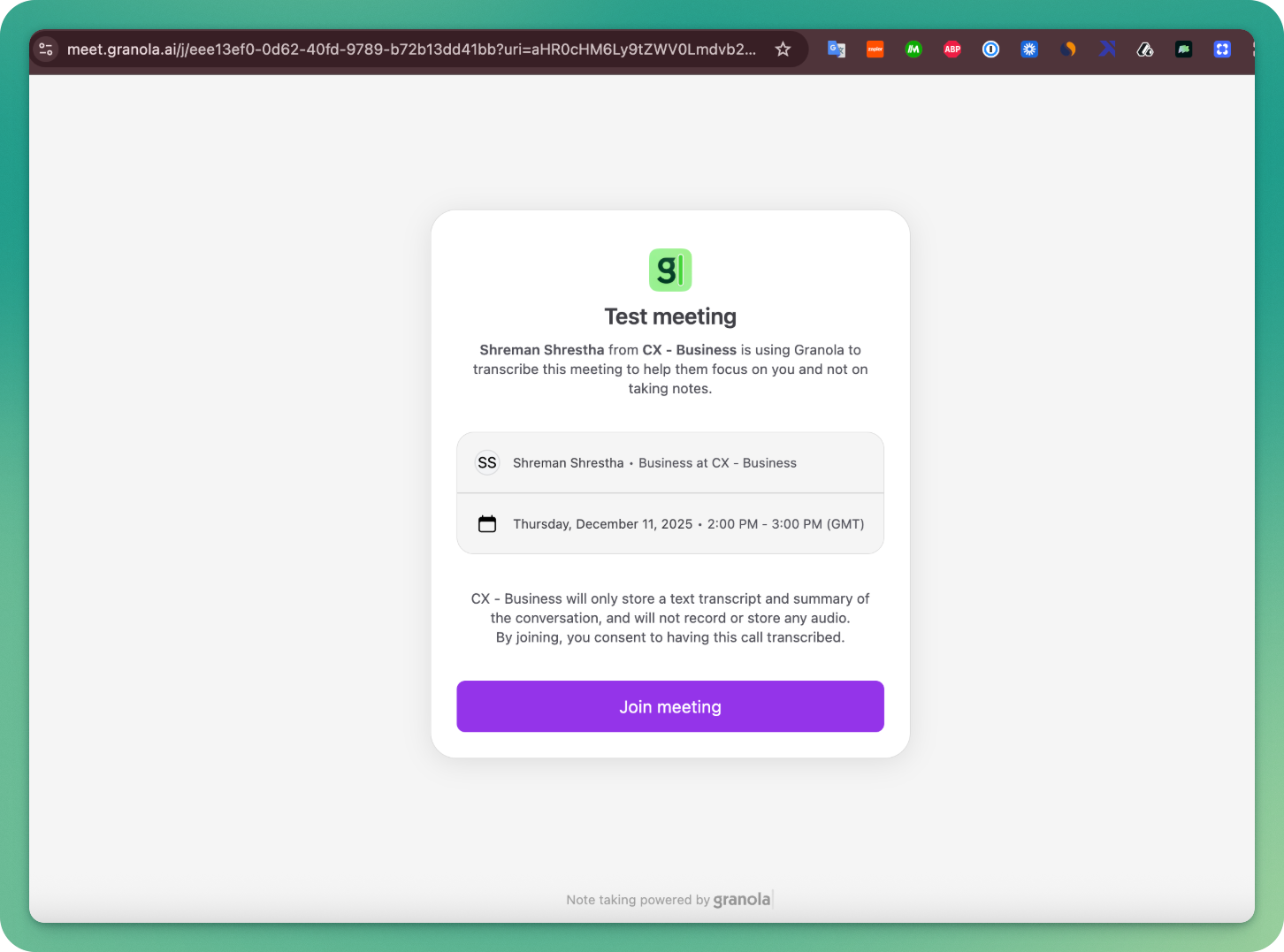
Heads Up is a feature of Granola's Google Calendar add-on. It tells anyone attending a meeting you’ve organized that you’re using Granola.
It requires attendees to click “Join meeting” to access the call, so you can be sure they’ve seen your heads up.
How do I turn on Heads Up?
First, install the Granola for Google Calendar add-on by going here.
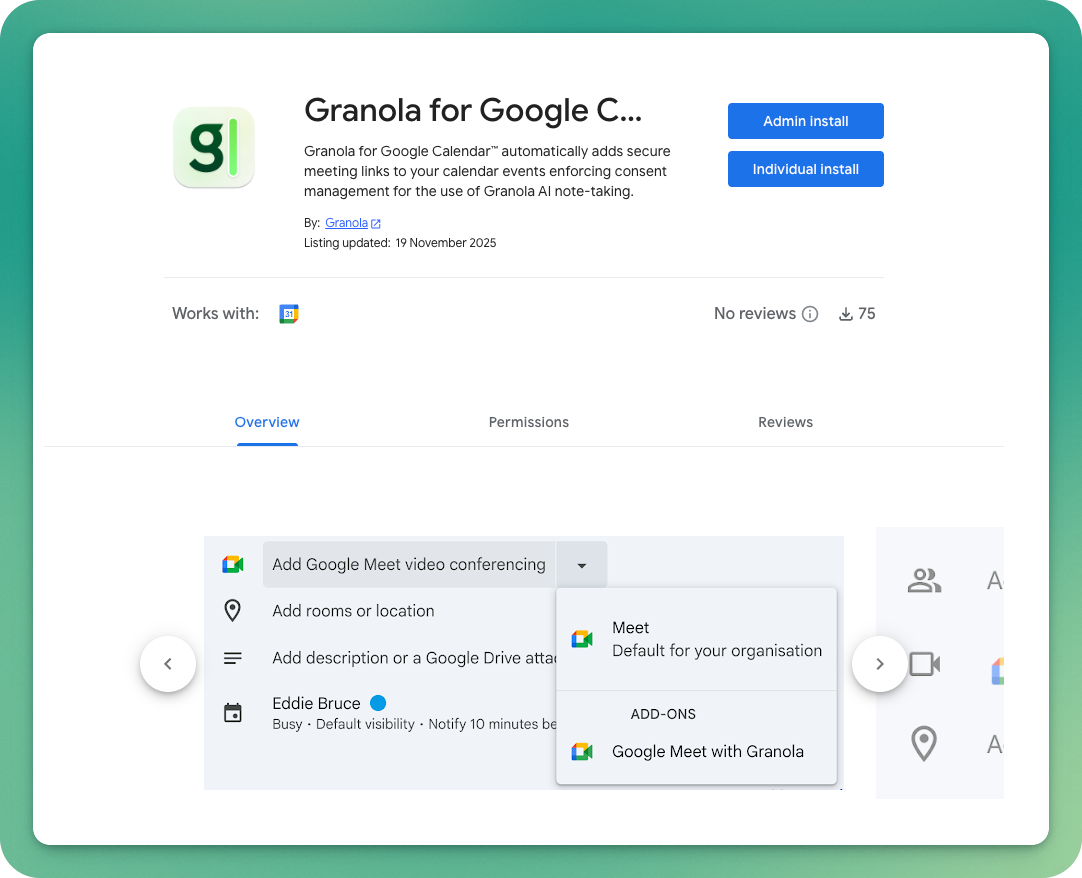
Once it’s installed, you’ll have a new option under Add video conferencing when arranging a new meeting: Google Meet (with Granola).
Google Meet (with Granola):
Creates a Meet with all your normal admin settings applied
Adds a heads up screen before your meeting
Asks participants to click "Join meeting" before they join a call (they’re redirected to your Meet after that)
Granola logs the fact that the Join meeting button was clicked, but doesn't collect any personally identifiable information about the person that clicked it.
When you use Google Meet (with Granola), invitees will see Granola’s Heads Up screen. When you use Google Meet, they won’t.
Once installed, you can create meetings with Heads Up from Google Calendar.
How do I create a Heads Up meeting?
As a meeting organizer:
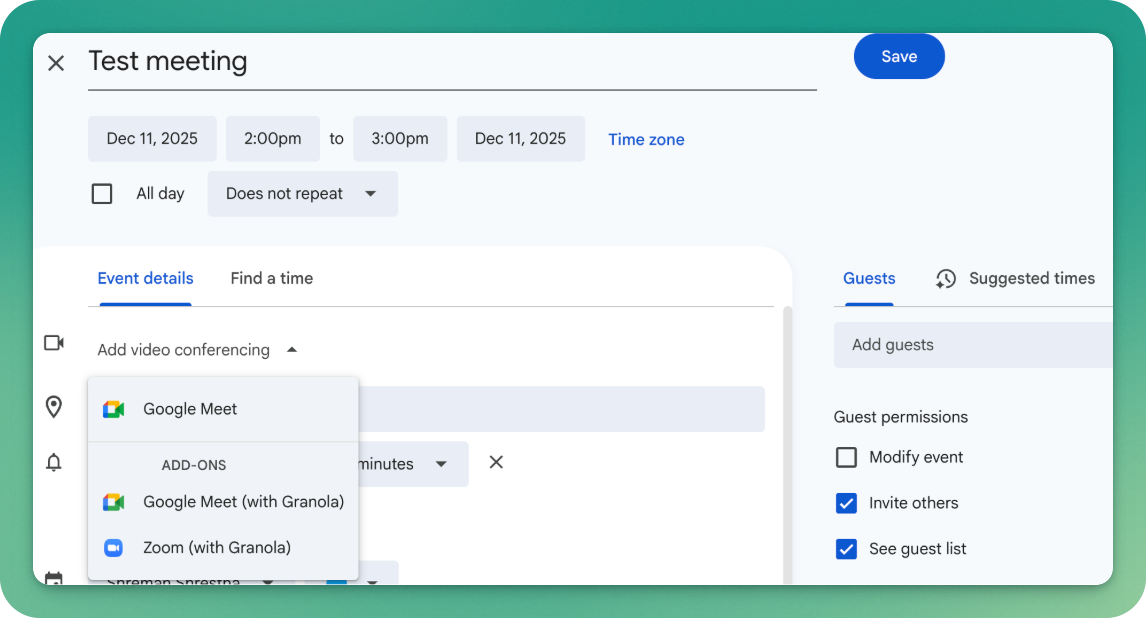
Once you've installed Granola for Google Calendar, create a new event in Google Calendar.
You’ll see a new option in the dropdown under Add video conferencing: “Google Meet (with Granola)”.
Choose Google Meet with Granola.
Add your meeting participants and other details as normal.
Save the event.
A Google Meet link is created with all your normal settings applied
A Heads Up page will be added to all participants, which they'll see before they join your meeting.
Your can choose to use another video conferencing provider (e.g. Google Meet, Zoom) if you don't want invitees to see a Heads Up page.
How do I always show Heads Up?
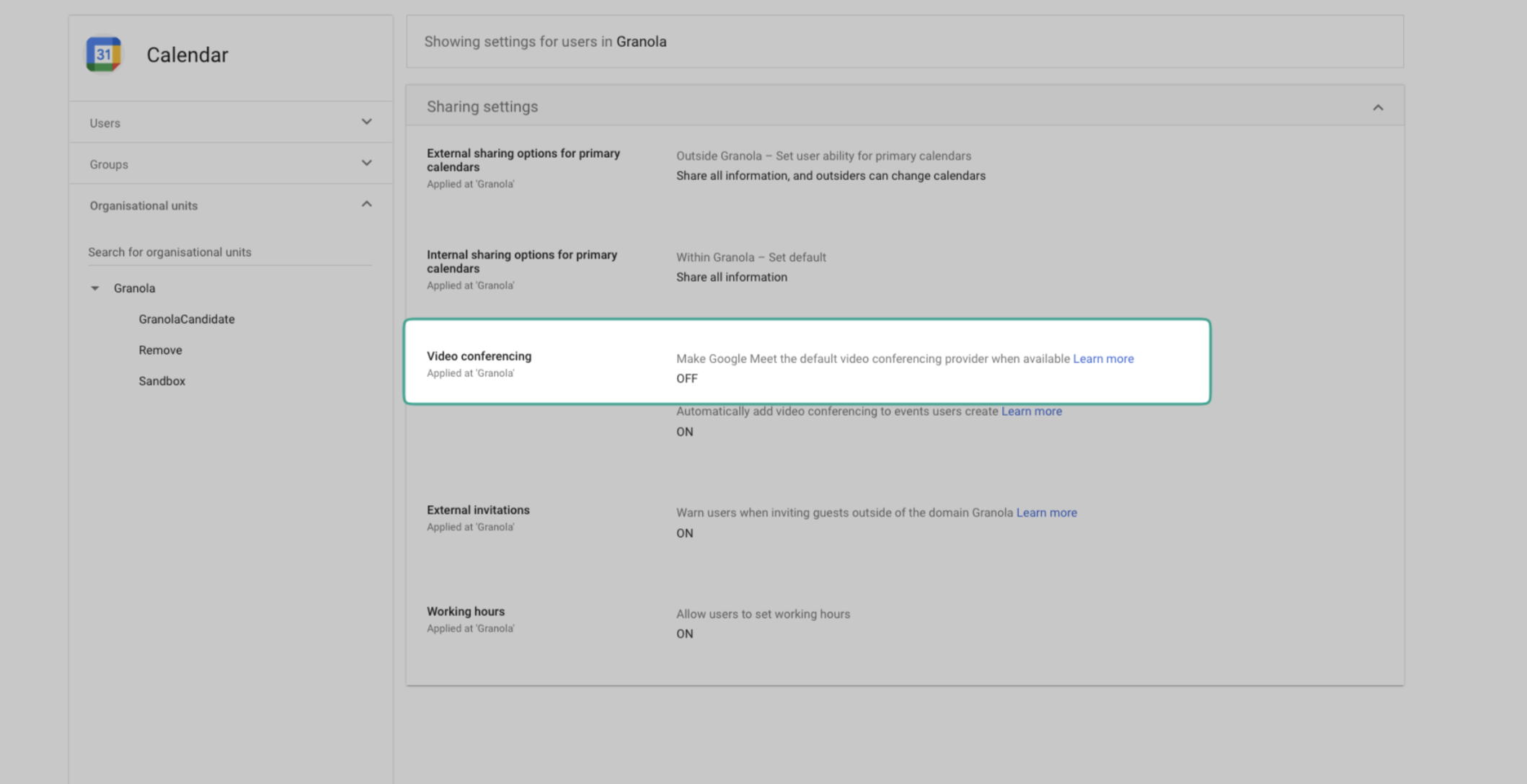
You'll need to set Google Meet (with Granola) as your default provider.
Go here, then turn Make Google Meet the default video conferencing provider when available to off.
What participants see
On your event, participants will see "Join Google Meet (with Granola)".
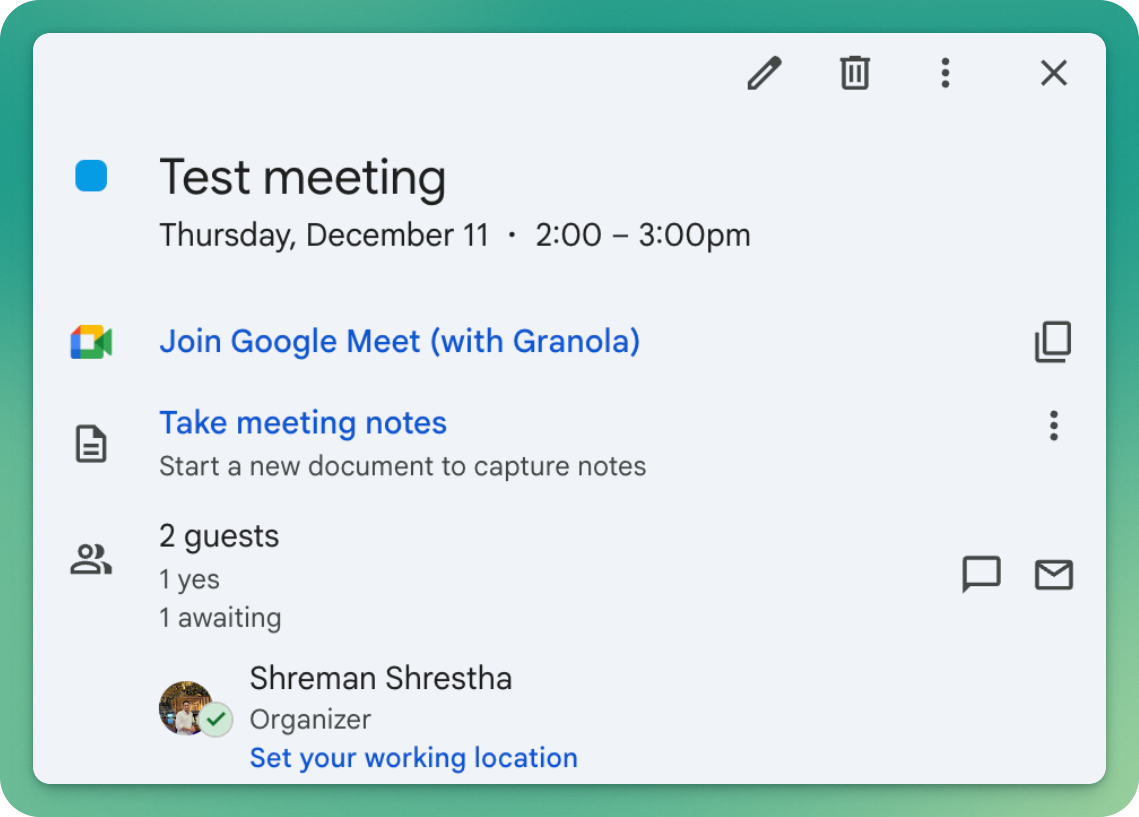
When a participant clicks the meeting link, participants will see a Heads Up page that includes:
Meeting details (title, time, organizer, the name of your company)
An explanation that Granola will be used for AI notes
"Join meeting" button to confirm and proceed
After clicking "Join meeting," participants are redirected to the Google Meet.
How to uninstall the add-on
Navigate to the Granola add-on page
Click "Uninstall".
Note:
We do not store any of your data after you uninstall.
More information on uninstalling add-ons here.