
Multi-language support
Granola supports multiple languages for transcription and meeting summaries, allowing you to use the app in your preferred language.
Supported languages
Granola currently supports the following languages on iPhone and on our Multi-language setting on macOS/Windows: English, French, German, Spanish, Italian, Portuguese, Dutch, Japanese, Russian, and Hindi.
In addition, Granola on iPhone also supports Mandarin Chinese, Finnish, Korean, Polish, Turkish, Ukrainian and Vietnamese.
These are our transcription provider's current supported languages. If you'd like to request another language, please submit it on our language waitlist and we'll let you know when we have an update.
Transcribing multiple languages
On desktop (macOS and Windows) when the Multi-language transcription language setting is enabled, Granola will allow you to swap between any of the supported languages throughout your meeting and should transcribe all of them.
On iOS, Granola will analyze the transcript and choose a single language to transcribe in, so it's best to stick to a single language throughout your meeting. Once a meeting is transcribed, the language can't be changed afterwards.
Choosing your language preferences
You don't need to do anything to set up multi-language transcription on iPhone - it's enabled by default and works for all of the above languages.
In Settings > Language, you can choose the languages you'd like to use for transcriptions and summaries:
Transcription language
English: best quality if the majority of your meetings are in English
Multi-language: seamlessly transcribes all the languages listed above, even if multiple languages are spoken in the same meeting
Multi-language transcription doesn't support internal jargon yet, so some company names and industry-specific jargon might not be transcribed accurately.
This setting will only work for new meetings - you can't translate old transcripts, although you can ask the chat in Granola to generate translations of quotes from the transcript!
Summary language
English: AI-generated notes will be in English, regardless of the language that was transcribed during the meeting
Auto: AI-generated notes will be in the majority language that was transcribed during the meeting
If you'd like to re-summarize old meeting notes based on this, you can change this setting and then open each note, then re-generate your summarized notes.
Changing languages during a meeting
You can change the language during an active meeting in the meeting controls:
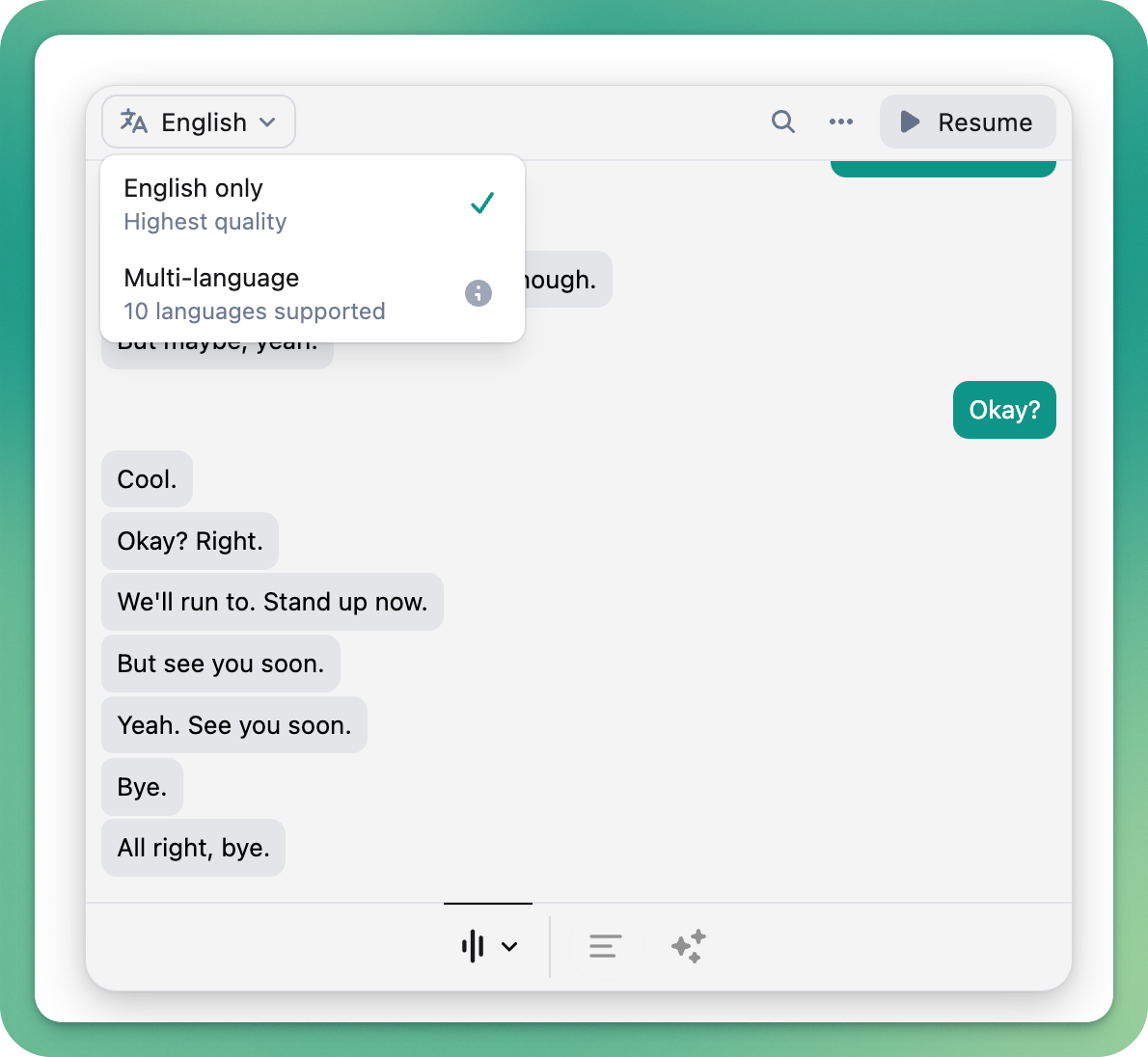
This might result in a brief pause in transcription while the new transcription model loads.
Changing the language mid-meeting will also update your settings for future meetings - head to the Settings to change it back.