
Transfer notes between workspaces
Transfer notes to another workspace
This feature allows you to move all your notes from one Granola workspace to another. This is useful when you need to reorganize your work in a new workspace, switch teams, or consolidate notes from multiple workspaces into one central location.
How to transfer your notes
To move your notes to a different workspace, follow these steps:
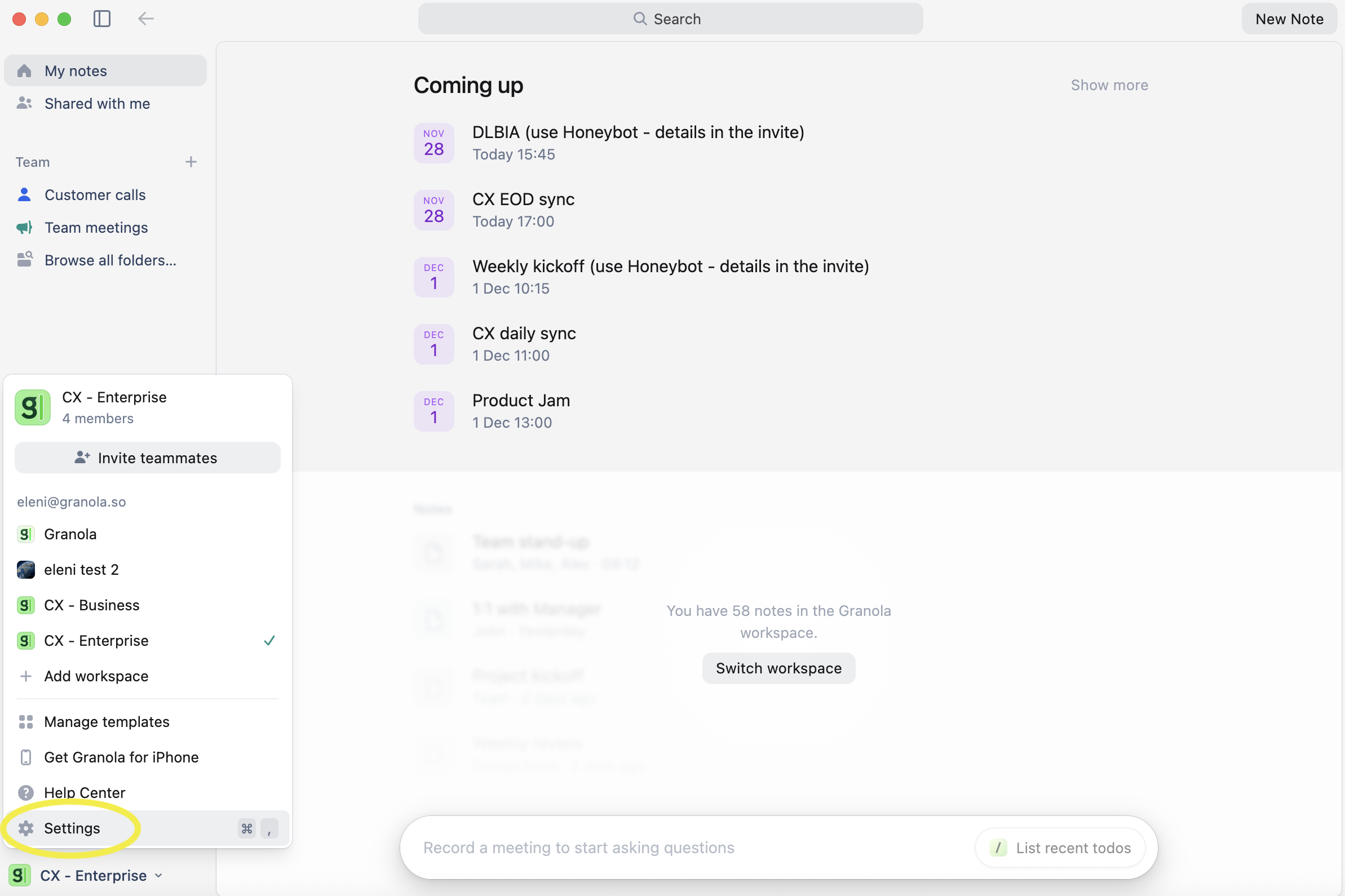
Click on your workspace name in the bottom left corner of the screen
Select Settings from the menu
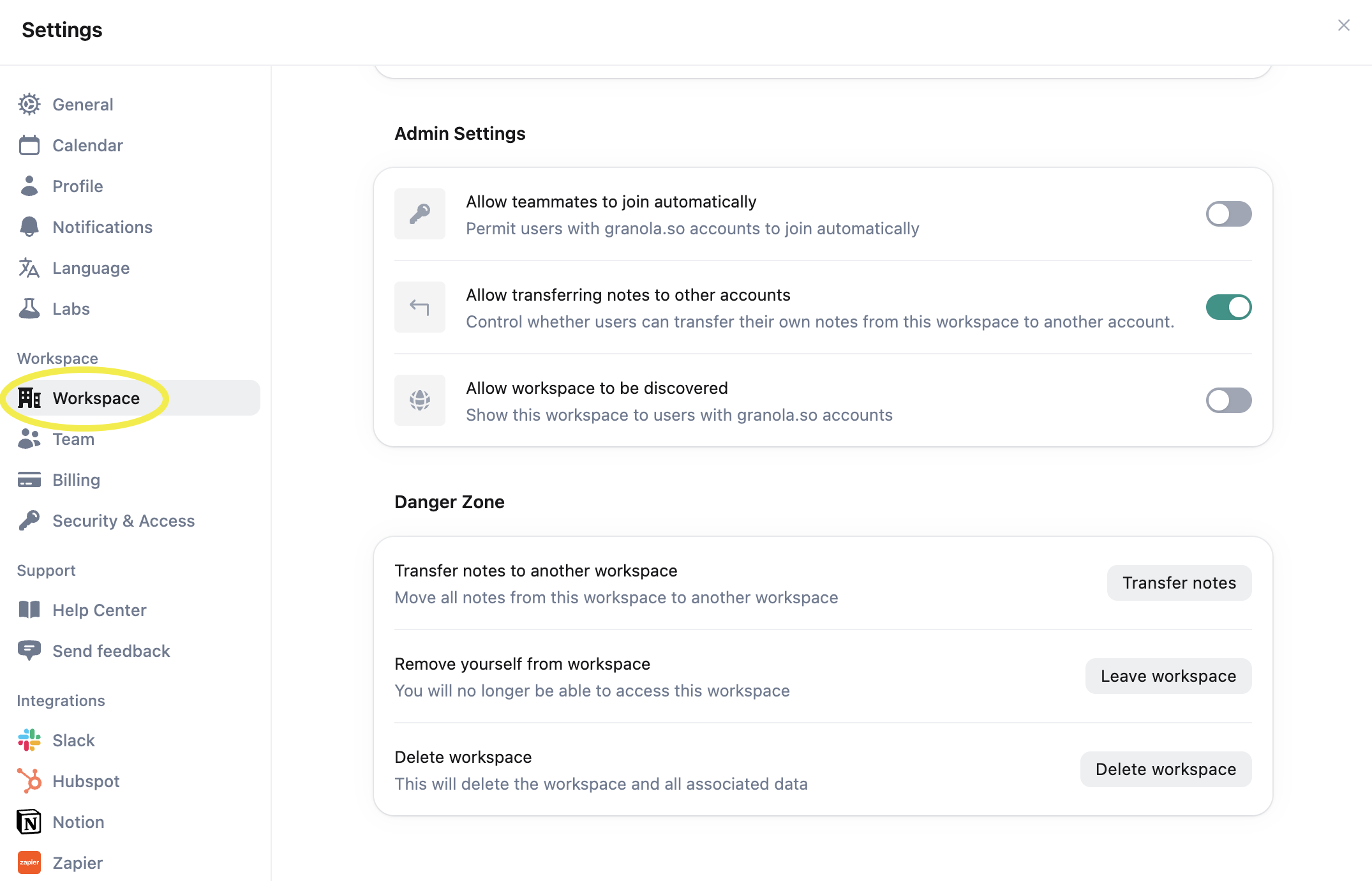
Click on Workspace from the menu options on the left-hand side
Scroll down to the Danger Zone section
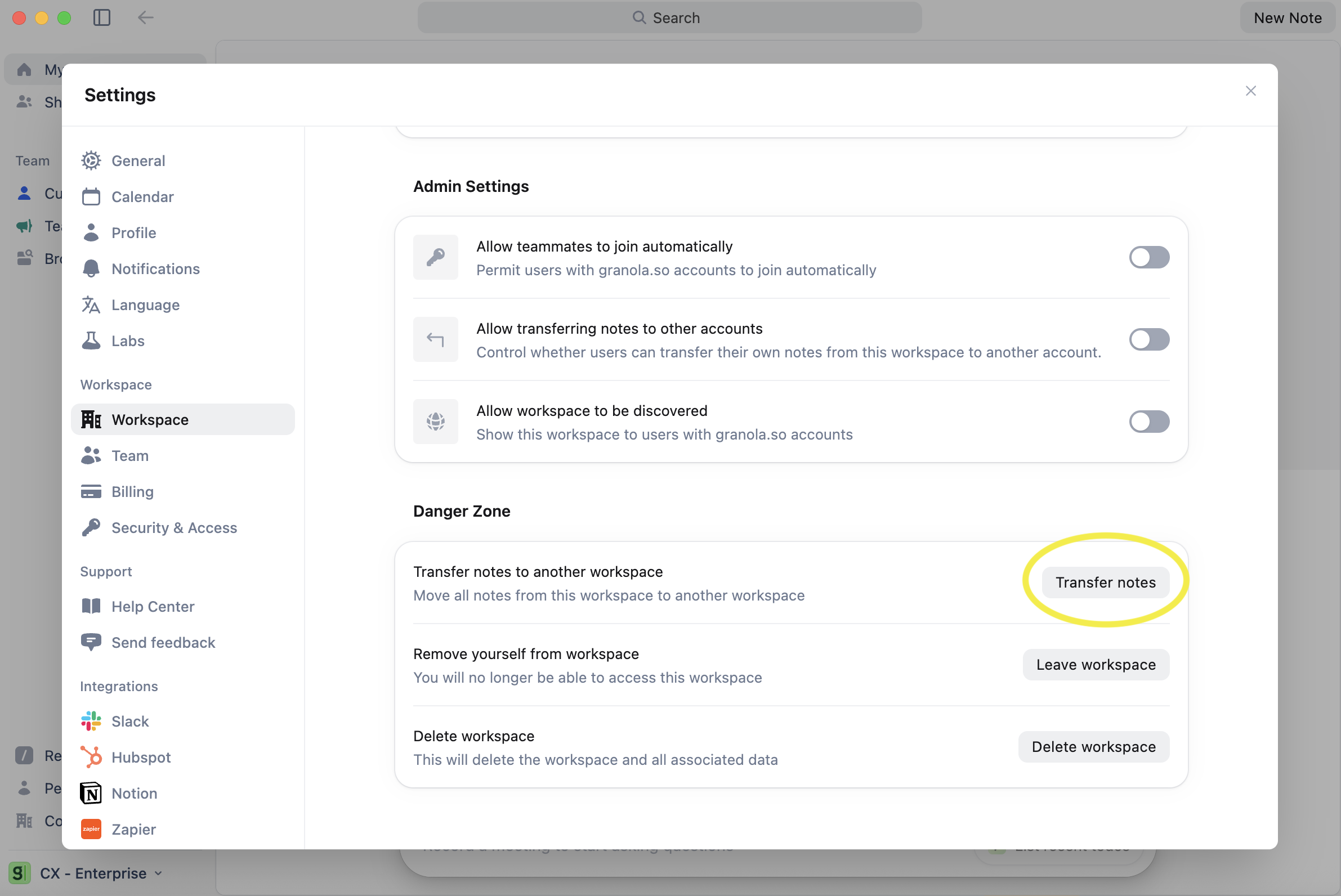
Find the option that says Transfer notes to another workspace
Click the Transfer notes button
Select which workspace you want to move your notes to from the dropdown menu
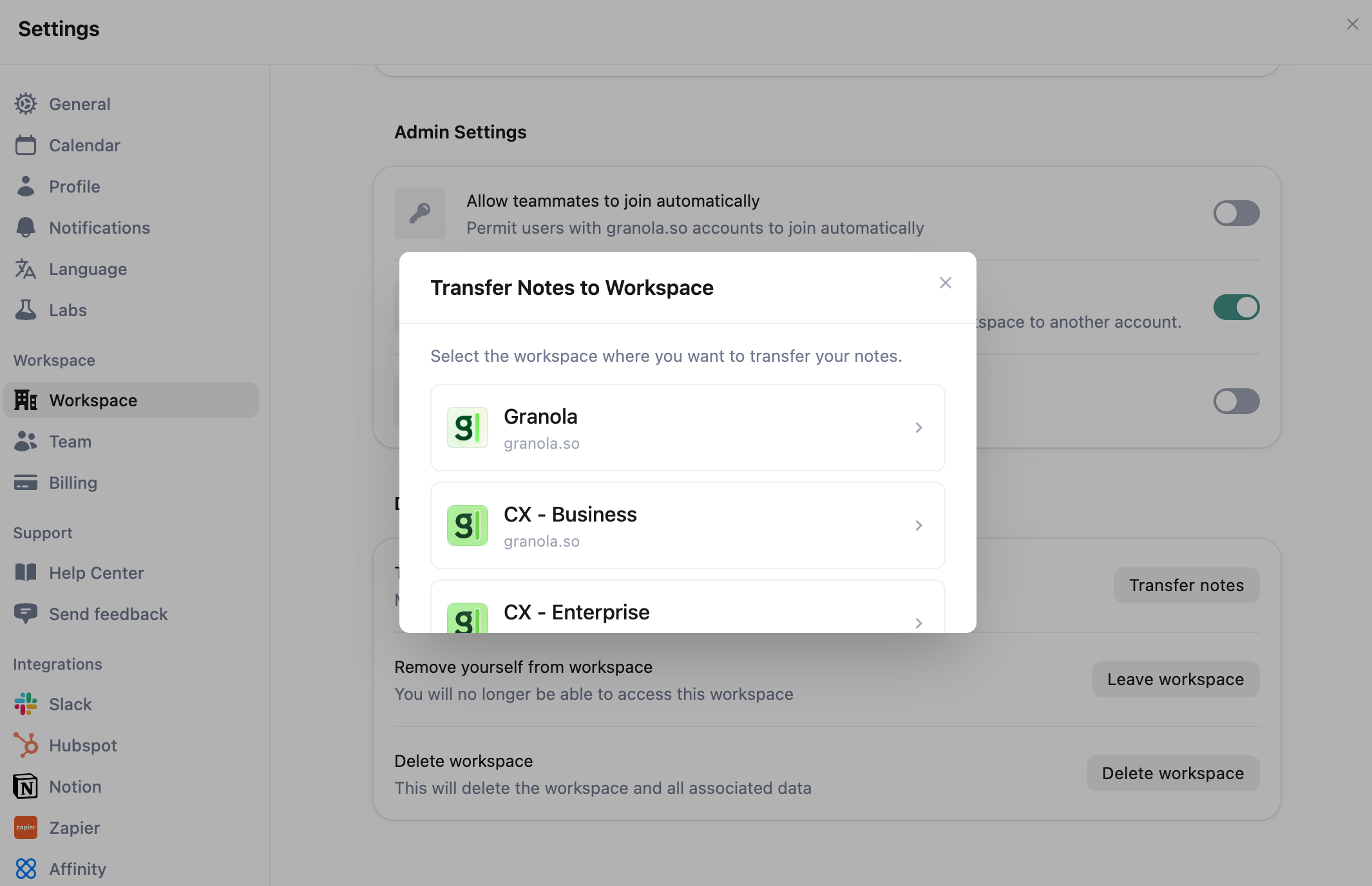
Once you complete these steps, all your notes will be moved from your current workspace to the selected destination workspace.
Permission requirements
Your workspace admin may have disabled the ability to transfer notes between workspaces for security reasons. If you find that you cannot access the transfer feature, you’ll need to ask your admin to enable it.
For workspace admins
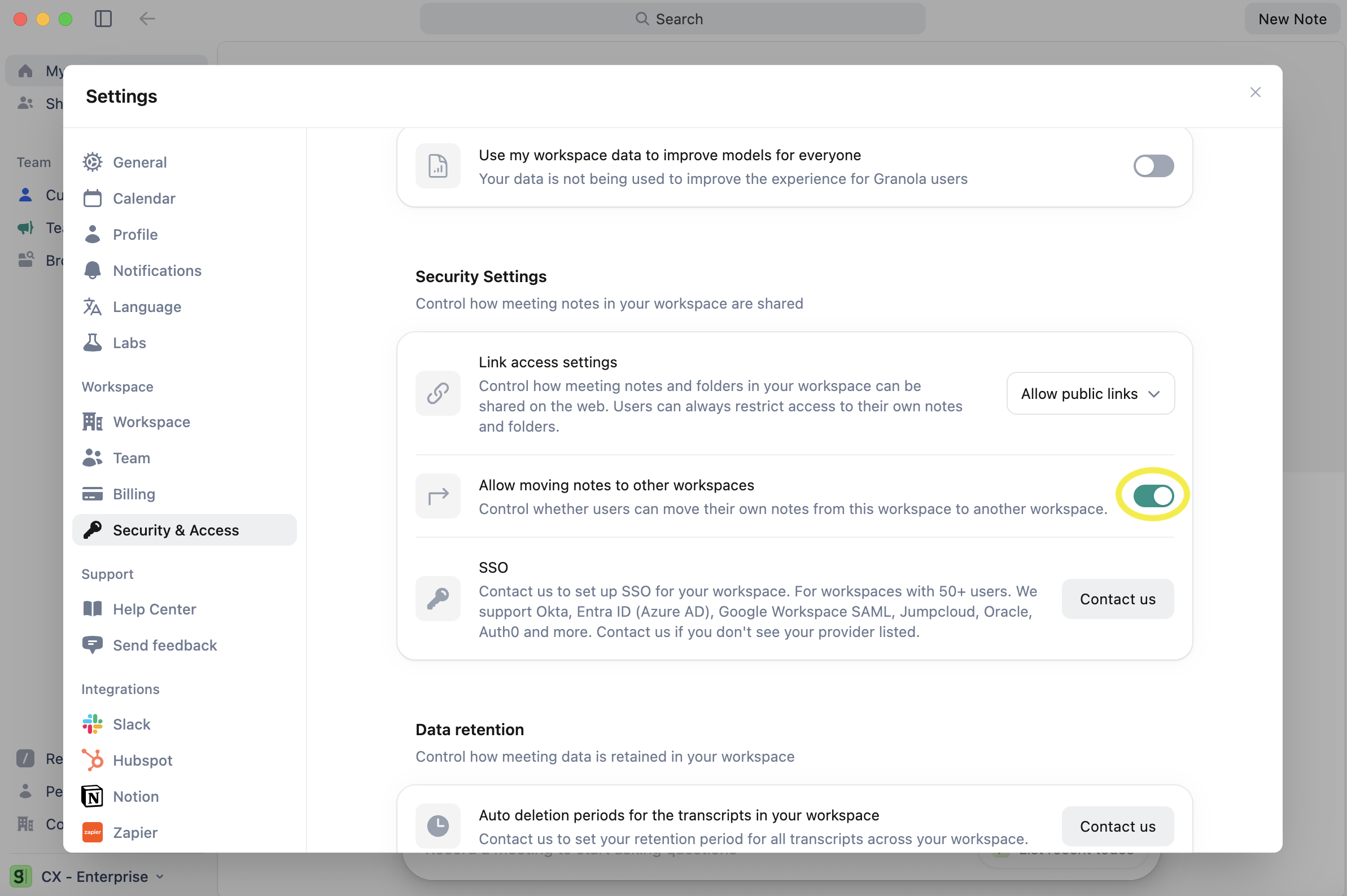
If a user needs to transfer notes but the feature is disabled, you can enable it by:
Go to your workspace Settings
Navigate to Security and Access from the left menu
Toggle on the option for Allow moving notes to other workspaces
Troubleshooting
Transfer option is not available or not working
If you can’t see the transfer option or it’s not functioning:
Check with your workspace admin to confirm that note transfers are enabled for your workspace
Once your admin enables the setting, try the transfer process again
The feature should work as expected after permissions are activated