
In-Meeting Notice in-depth
Overview
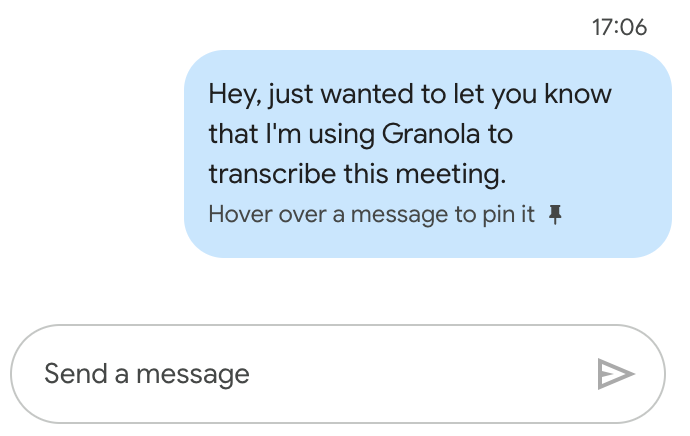
In-meeting notice helps you let people know that Granola is being used by helping you post a notice message in meeting chat.
This works in two ways:
Automatic. Granola tries to automatically post a message to your meeting chat when you join, or
Manual fallback. If that's not possible, you'll see a banner in your meeting note with a one-click copy option to manually paste the message.
This provides real-time notice to all participants. In case someone is late, users can also easily copy this message with one click.
Automatic in-meeting notice works in most situations but isn't 100% reliable due to varying browser settings, focus states, and platform configurations. That's why we provide the fallback copy banner.
Here are some scenarios where automatic in-meeting notice may fail:
Meeting chat is not enabled by your organization.
You are not using Google Meet or Zoom.
Other applications, such as Loom, are interrupting Granola. (see "Troubleshooting" below)
You have not enabled macOS accessibility permissions. (see "Enabling In-Meeting Notice" below)
You are on Windows.
How it works
When both automatic and manual in-meeting notice are enabled:
You join a meeting on Google Meet or Zoom.
Granola attempts to auto-post your notice message into the meeting chat.
If auto-post succeeds, all participants see the message immediately.
If auto-post fails, a copy banner appears at the bottom of your meeting note.
You can click to copy the pre-defined message and paste it into chat manually.
This two-layer approach ensures participants are notified even when automatic posting isn't possible.
Enabling in-meeting notice
To enable in-meeting notice either as an individual user or on behalf of all users in your enterprise workspace, you need to switch on the setting and enable accessibility permissions.
As an individual user (automatic in-meeting notice only)
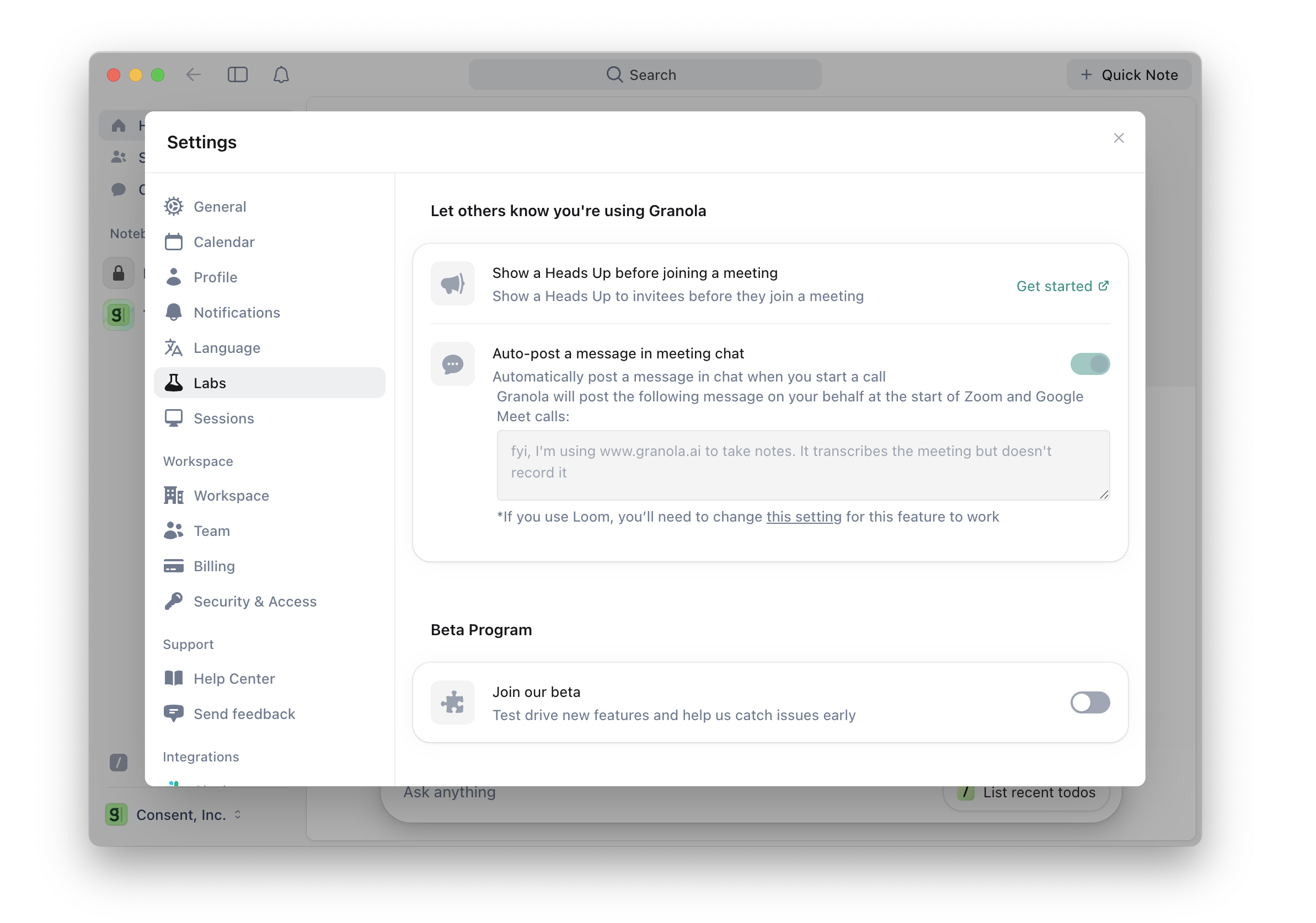
Individual users on any plan can enable automatic in-meeting notice only.
To do so, go to Settings > Labs > Let others know you're using Granola.
For automatic in-meeting notice to work, you will also need to enable accessibility permissions (see below).
For all users in a workspace (automatic in-meeting notice with manual fallback)
This feature is only available to Enterprise plans.
Workspace admins can enable automatic and manual in-meeting notice for all users in the workspace. Once enabled by an admin, individual users cannot turn this feature off.
To do so, go to Settings > Workspace > In-meeting notice.
Admins can also customize the notice message text to match your organization's requirements (see "Customizing your message" below).
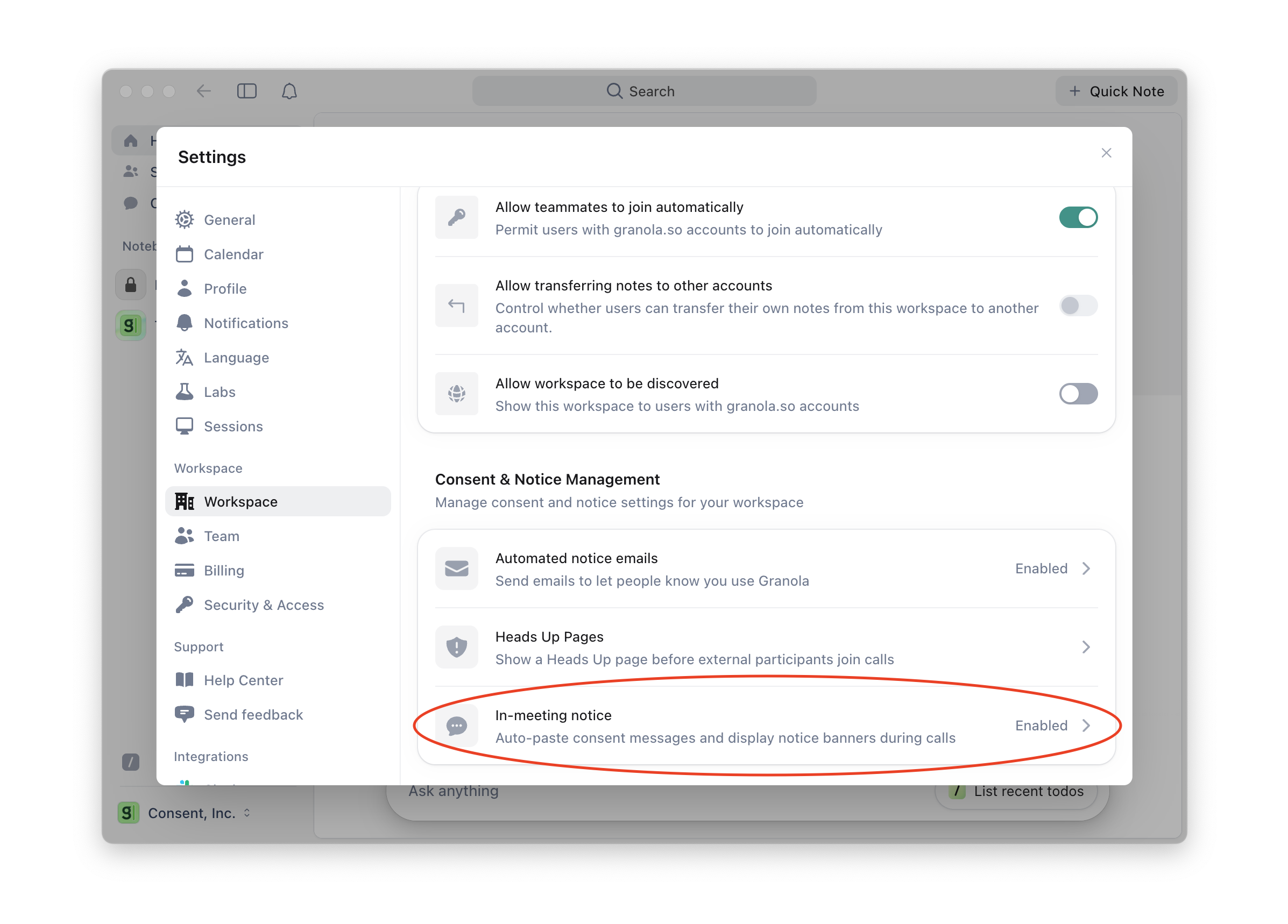
For automatic in-meeting notice to work, workspace members will also need to enable accessibility permissions (see below).
Enabling accessibility permissions
Automatic in-meeting notice requires macOS accessibility permissions, hence does not work on Windows.
Auto-paste requires accessibility permissions to interact with your meeting chat window.
When you (or your admin) enables this feature, you will see a persistent notification to complete setup of automatic in-meeting notice.
Click "Complete setup" to open the MacOS System Settings > Privacy & Security > Accessibility panel.
Enable permissions for Granola.
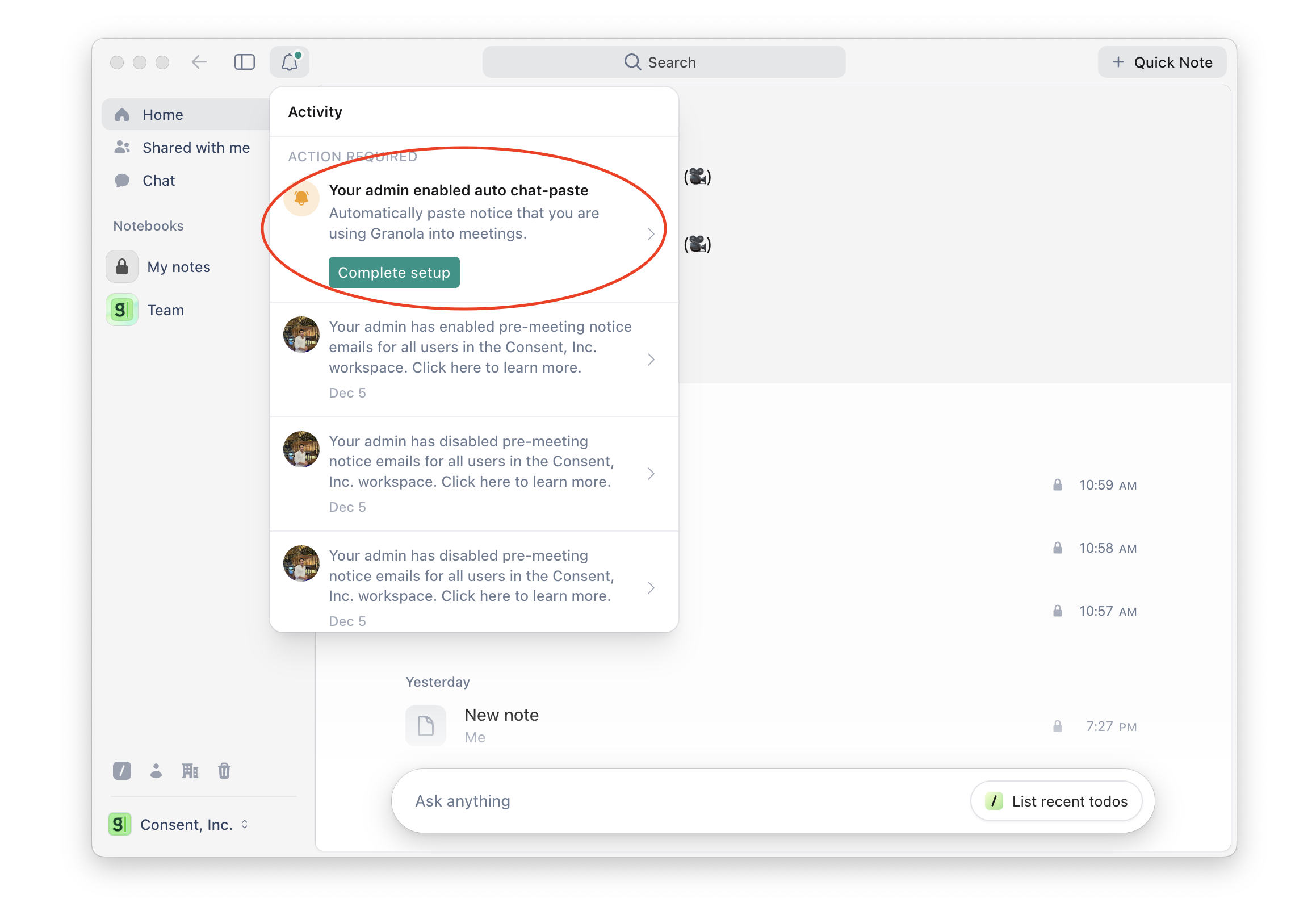
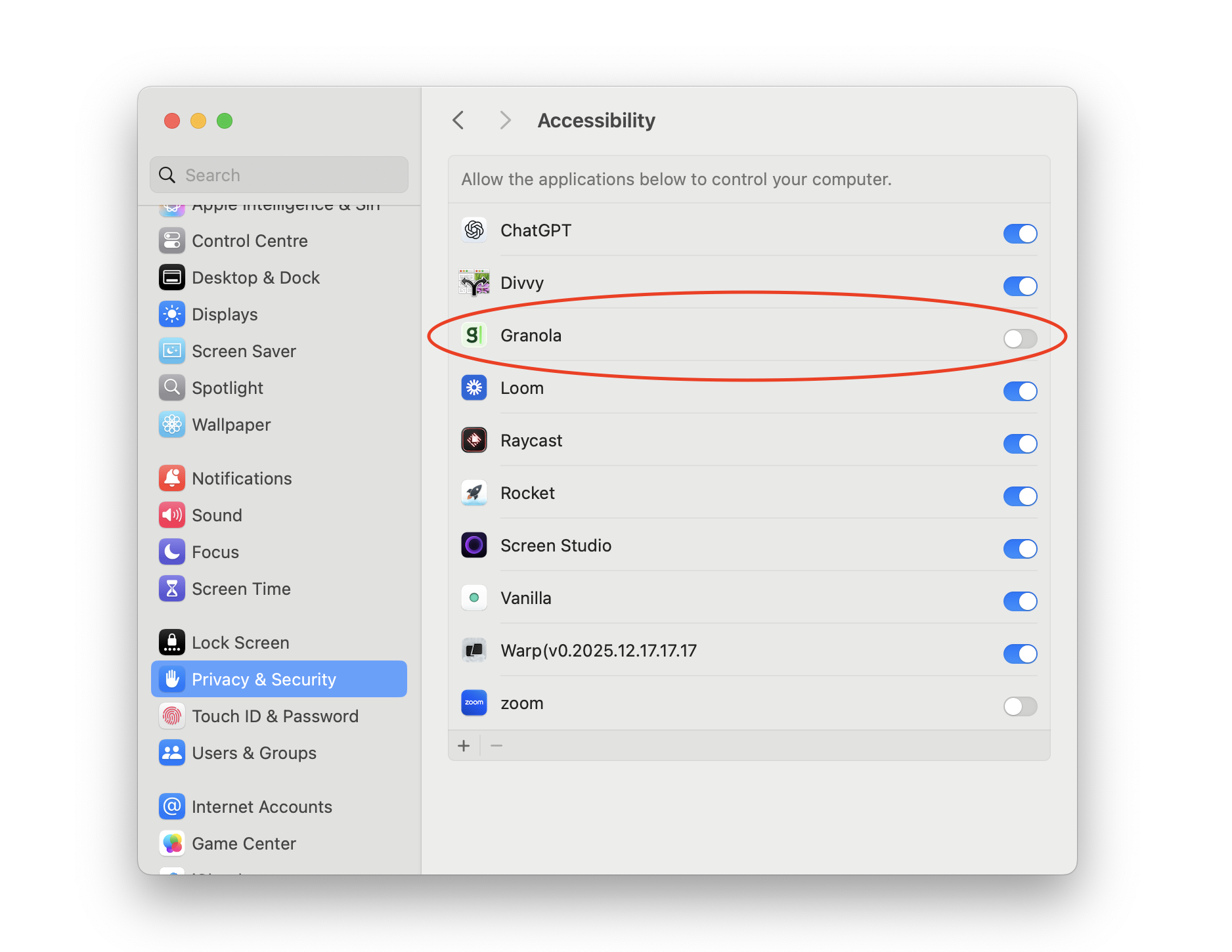
Once enabled, the persistent notification will disappear.
Fallback: manual in-meeting notice
Unlike automatic, manual in-meeting notice works on both Windows and macOS.
This feature is only available to Enterprise plans in pilot.
If automatic in-meeting notice fails to paste the message into the meeting chat (or accessibility permissions aren't enabled), you'll see a banner emerging from the live meeting indicator. This banner contains:
A prompt to give notice to meeting participants, and
A "Copy" button for one-click copying
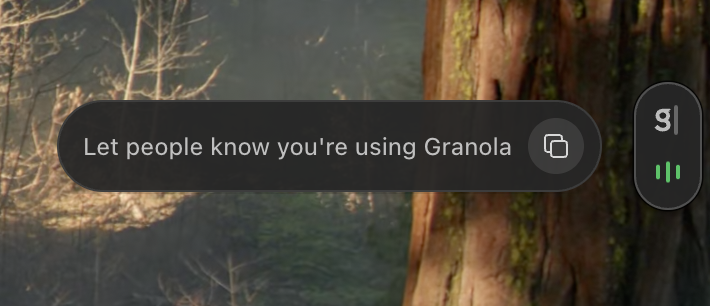
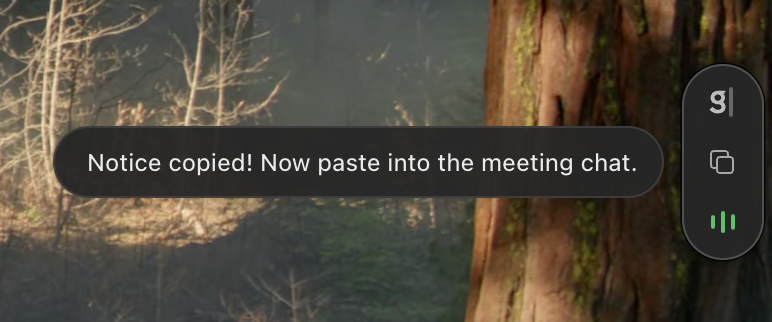
This banner displays for a period of time before folding into an icon on the live meeting indicator. The Copy button remains, so you can still copy-paste a notice into the meeting chat if, say, someone joins late to the meeting.
To use the fallback:
Click the Copy button in the banner
Switch to your meeting window
Open the meeting chat
Paste the message (Cmd+V or Ctrl+V)
This gives you a quick, easy way to ensure participants are notified even when automatic posting isn't possible.
Customizing your message
For workspace admins:
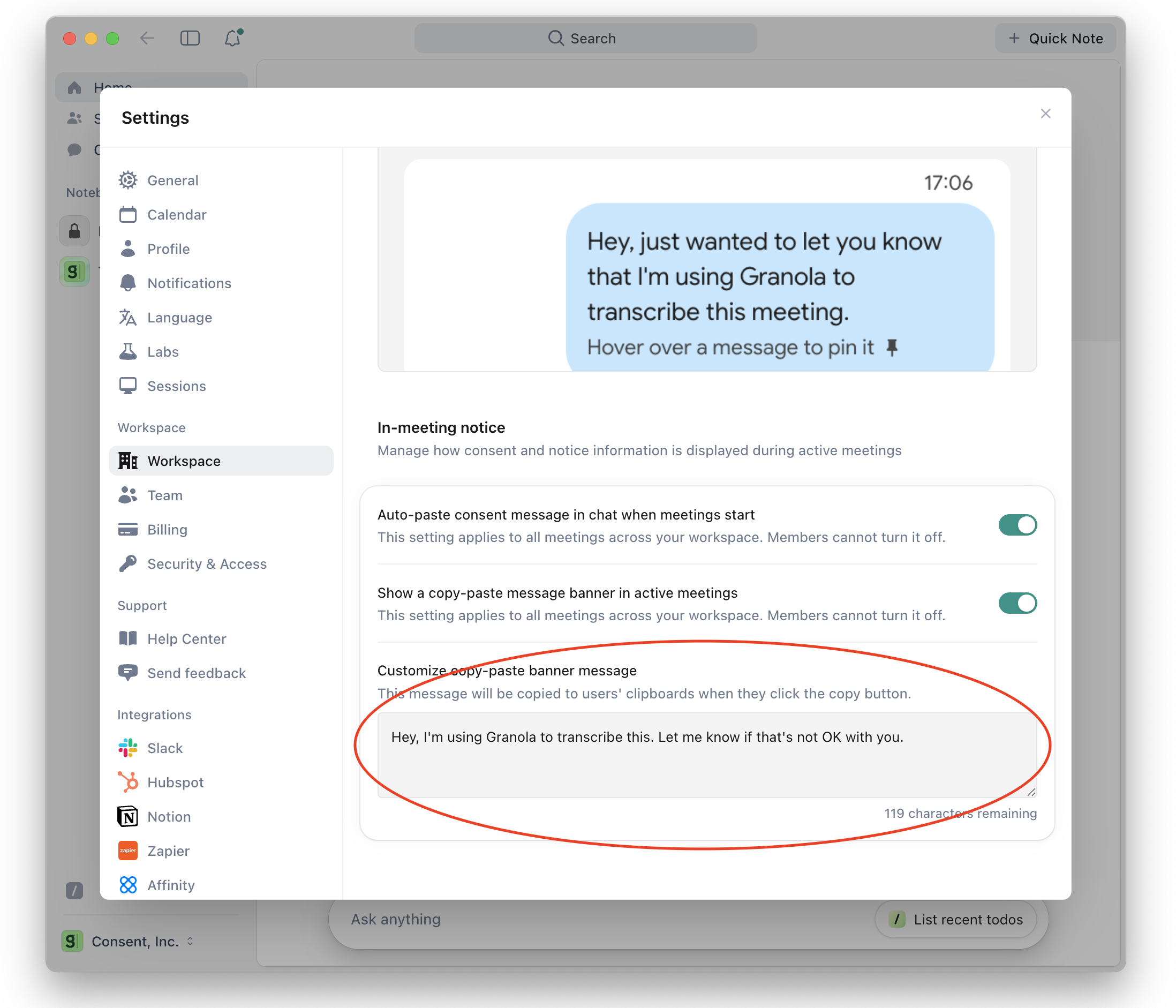
Go to Settings > Workspace > Consent & Notice Management > In-Meeting Notice
Find the Customize copy-paste banner message section.
Edit your notice message text in the provided field.
Click Save.
Your customized message will be used for the fallback copy banner only.
Troubleshooting
I see confetti when entering meetings
If you have Loom running when you’re on Granola, you need to disable the keyboard shortcut for confetti. To do so, open up the Loom widget and click on the three dots to open the settings. In preferences, disable the keyboard shortcut for confetti.
Message isn’t sending right at the start of a meeting
Automatic in-meeting notice is sent when:
Transcription has already started and recorded some transcription (i.e. another person is definitely present in the meeting).
The video call window is ‘in focus’ (i.e. you’ve clicked on it).
Therefore, the message may appear slightly later into the call, if not much is said at the start or if you’re focussed on another window.
Need help?
If you have questions about automatic in-chat entrance messaging or accessibility permissions, reach out to our support team at support@granola.so.